1. Connect HDMI to the capture card
Plug your console, camera, laptop, or other HDMI source into the HDMI input on a UVC-compatible USB-C capture card.
Manual
With a USB-C capture card, Noir turns your device into a portable HDMI monitor. This manual explains how to connect your hardware and use the main preview, monitoring, and display tools in Noir.
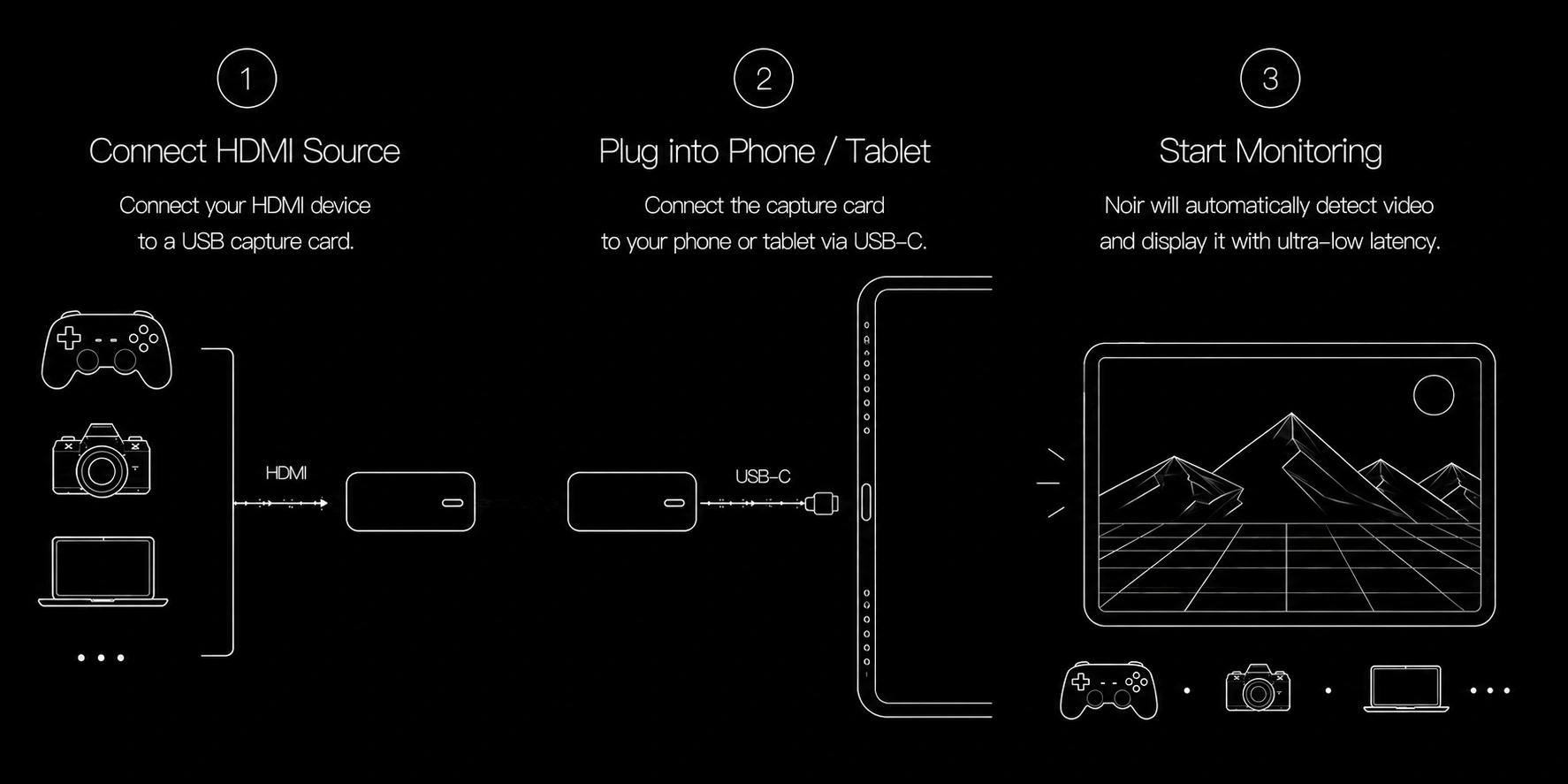
Plug your console, camera, laptop, or other HDMI source into the HDMI input on a UVC-compatible USB-C capture card.
Use USB-C to connect the capture card to your Android device or iPad. For USB 3.0 capture cards, use a USB 3.0 cable and a USB 3.0-capable port.
Grant the required camera or USB device permission, select the capture device if prompted, and choose a supported resolution or frame rate when available.
False Color maps processed preview brightness to colors, so video range and image adjustments can affect what you see.
Zebra overlays diagonal stripes on top of the live image for two key brightness ranges.
Focus Peaking highlights outlines and in-focus edges, either on their own or overlaid on the live image. In earlier versions, these tools appeared under Edge Detection labels. The overlay color can be green, red, or yellow. Lower thresholds reveal finer texture and noise; higher thresholds emphasize stronger outlines.
Color Separation splits the same preview into channel views, making it easier to inspect red, green, and blue channels separately.
Histogram shows how image values are distributed from shadows to highlights. Waveform maps brightness against horizontal image position, which helps judge exposure across the frame. iPad also includes Vectorscope for checking color hue and saturation distribution.
Noir supports Cube 3D LUT files. On iPad, import LUTs from the 3D LUT settings page, then apply them from the toolbar. On Android, choose the folder where your LUT files are stored, then select a LUT from Visual Effect or the LUT toolbar button.
CRT effects simulate scanline and CRT-style rendering. Use them when you want a retro display look rather than a measurement overlay.